Well, I’m here at Reading University and one of the joys of living here in halls is using the wonderful internet connection, shared with many other download-happy students.
As well as the speed being quite variable, there’s also a greater security risk, especially when transmitting passwords over normal, unencrypted HTTP connections. To solve that problem, I SSH into my server, still sitting back at home and tunnel HTTP traffic through the SSH connection.
This creates a SOCKS proxy server on my local machine and I can push the Mac’s traffic through it. It takes a long time and is fiddly, however, to switch the SOCKS proxy on and off from System Preferences, especially when (as in my special case) you can’t use Leopard’s Locations feature.
The AppleScript applications provided below are a quicker solution. Launch the right app, type your password and the proxy is flipped on or off. Nice and simple and much less fiddly than messing around in System Preferences.
Please support this work!
There used to be advertising here, but I no longer feel sure that advertising delivers the best experience and truly reflects the values of this site.
Keeping things running, however, is not without financial cost. If you would like to support the time and effort I have put into my tutorials and writing, please
consider making a donation.
Download AppleScripts
If you’re not interested in reading how the solution works, and just want some AppleScript applications that you just launch to flip the proxy on/off, download them here:

Make sure you have the proxy settings saved within System Preferences first. For more information, see the Readme PDF in the download. These AppleScripts support only Mac OS X 10.5 Leopard and above.
The Problem
If you’re still here, you’re probably interested in either why I’m doing this or how the solution works. Read on.
For web browsing, I can use Firefox and set its individual proxy settings to use SOCKS without affecting the whole system. That works great, for that unencrypted HTTP stuff.
However, there is also an issue with sending email to SMTP servers on this connection, which prompted me to make this quick-switch solution. I can’t be sure whether the SMTP issue deliberate, or just slowness, but trying to connect to non-Reading SMTP servers to send emails just times out. Therefore, to send emails, I need to tunnel Mail.app’s traffic through the SSH connection too, if only briefly.
Mail.app requires me to change (albeit briefly) the whole system’s proxy setting.
I thought Leopard’s ‘Location’ feature in Network may allow separate network profiles for proxy and normal, but the problem is switching between them drops the SSH connection in Terminal (and therefore, the local SOCKS proxy is no longer running, so the whole thing goes down).
Instead, I need a way to toggle the network SOCKS proxy settings in an automated manner for the system, so I can one-click to flip it on and off again to send an email.
The Solution
Thankfully, Mac OS X’s network settings can be changed via the command line, which in turn can be run from AppleScript. This solution is only tested on Leopard, however it may work on Tiger if references to networksetup are changed as per this article.
Here’s how:
$ networksetup -setsocksfirewallproxy Ethernet 127.0.0.1 1080 off
There are four arguments I’ve used here, let me explain what they each do.
-setsocksfirewallproxy – tells networksetup to turn the proxy on, with the following settings
Ethernet – the identifier of the network service to change the settings for (e.g. AirPort, Ethernet). Use networksetup -listallnetworkservices to see all valid values.
127.0.0.1 – the address of the SOCKS proxy. In our case, SSH creates the proxy on the local system, so 127.0.0.1.
1080 – the port of the SOCKS proxy. This is the -D argument in your SSH command.
off – this is for authentication. The SSH SOCKS system doesn’t need authentication and only runs on loopback, so we leave it off. If you’re using a different SOCKS system, you may need this (and also give the username and password as arguments after it).
Running the command will probably spring an authentication dialogue, just as you have to unlock the Network preference pane.
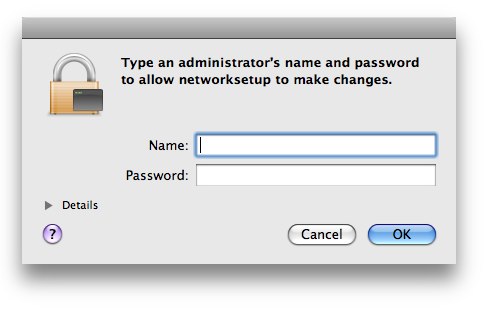
Then, it’s enabled for the whole system. Solves my Mail.app problem, I can now send that email (and my existing SSH connection isn’t dropped just because the network state changes).
How to disable proxy
You can just as simply disable the proxy.
$ networksetup -setsocksfirewallproxystate Ethernet off
Again, substitute Ethernet for your network service name if necessary (probably either AirPort or Ethernet).
It is also possible, once the settings are remembered by Mac OS X, to just use:
$ networksetup -setsocksfirewallproxystate Ethernet on
The AppleScripts I have made and you can download from above make the process even easier; you just launch the app to switch the proxy setting. If you’re a command line junkie, however, you may prefer to switch from the CLI.
The networksetup command was found thanks to this Mac OS X Hints post.

I will give a try. Thank you for sharing
You seem to know your stuff! Do you have any ideas about getting mac mail (with a gmail imap account) working behind a school proxy server?
Using a manual http & https proxy setting. but mac mail apparently doesn’t see the proxy settings. The port for the proxy is 3129 but gmail smtp needs to use 993. I’m quite savvy but not a programmer/terminal kind of guy. Is it possible. Googling has brought up no answers…. any help would really appreciated
Dan,
A HTTP and HTTPS proxy won’t affect your connection to the IMAP and SMTP servers for Gmail – because those connections don’t have any relation to HTTP(S), so the proxy server isn’t invoked for them!
This post is about setting up a SOCKS proxy – where you have an SSH server (or another SOCKS proxy) at the other end, and set that up. SOCKS differs from an HTTP(S) proxy, because SOCKS routes all of your traffic through, not just the HTTP stuff. If you can get access to a remote machine to use as a SOCKS proxy (perhaps set up a Linux server or another Mac with SSH at home?), then you could do the following:
Once you’d done that, keep your SSH connection in the Terminal window open, but all your other connections – web, email, IM etc. would all be bouncing via your machine at home and could not be intercepted or meddled with (assuming individual apps don’t have their own proxy settings you have to set too). That is what this post is about, but I’m not sure it’s answering exactly the same question that you are asking.
Do you know why is it that the IMAP and SMTP connections don’t work at the moment?
Hey there peter, you say this works on 10.5 leopard, is it 10.5 and up? (does it include snow leopard).
Ruben Mera,
Absolutely. This works great with Snow Leopard too.
I’ll be trying this with a Snow Leopard Server I have at home, and a MacBook Pro with Snow Leopard I carry around, I have one last question…
Do I have to set my server to receive SSH connections on port 1080? (I would do this not by changing the server’s port but by setting up NAT on my router to receive from 1080 and forward to 22 on my LAN)
Ruben Mera,
No, what you do is that you open a Terminal window before running the ‘on’ script and SSH into your server as normal, but with the option:
-CD 1080-C is compression, -D creates the tunnel on local port 1080.
Your remote SSH server remains on whatever port it is on, but running that command creates the SOCKS proxy on your local machine’s port 1080.
Excellent! Thank you so much! I needed to help some friends use my server as a web proxy so that they can access a couple of websites that wont accept connections from foreign countries.
Nice, thank you for sharing!
hey this is slick. Thanks!
I turned this into a nice little one liner that I have an alias for
alias phone_proxy="networksetup -setsocksfirewallproxystate AirPort on; ssh -C -D 3072 USER@SOMESERVER.com cat; networksetup -setsocksfirewallproxystate AirPort off;"
when I kill the terminal window via control C, it then shuts down the connection as well.
This assumes the connection is via port 3072 and an SSH key in ~/.ssh/
Very cool, thank you for your scripts!
Sweet, thanks for posting, nice not to reproduce it.
Very thanks
Works on Big Sur, thank you.